Quick answer: wsl --export Ubuntu C:WSL-Backupsubuntu-backup.tar creates a full snapshot of your WSL2 distribution — every file, package, SSH key, and config. A minimal Ubuntu with development tools exports to 500 MB–1 GB in 1–5 minutes. Restore with wsl --import Ubuntu C:WSLUbuntu C:WSL-Backupsubuntu-backup.tar. After any import, WSL2 defaults to logging in as root — fix immediately with ubuntu config --default-user yourusername in PowerShell. Files on Windows drives (/mnt/c/) are NOT included in the export — back those up separately. Tested on Windows 10 and Windows 11, March 2026.
A WSL2 instance that took hours to set up — installed packages, shell configs, SSH keys, Python environments, dotfiles — can be destroyed in seconds by a Windows reinstall, a failed upgrade, or accidentally running wsl --unregister. This guide covers how to back up a WSL2 instance with wsl --export, restore it with wsl --import, automate daily backups with Task Scheduler, and migrate a full environment to a new machine. Exact commands, expected output, and the specific errors you will run into. Tested on Windows 10 and Windows 11, March 2026.
If you have not set up WSL2 yet, start with the WSL2 installation guide first. For moving files in and out of WSL2 after restoring, the WSL file transfer guide covers every method.
What does wsl –export include and what does it miss?
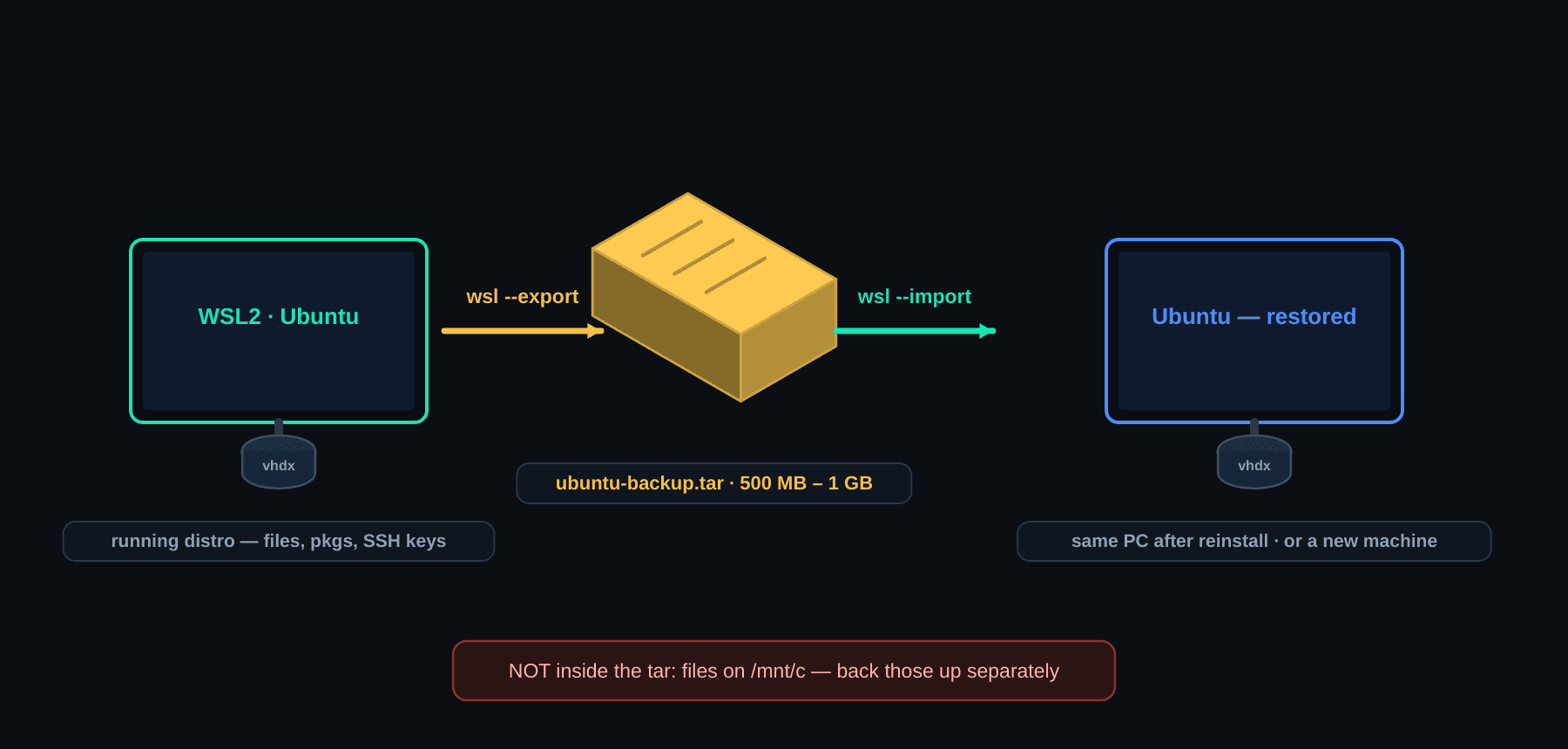
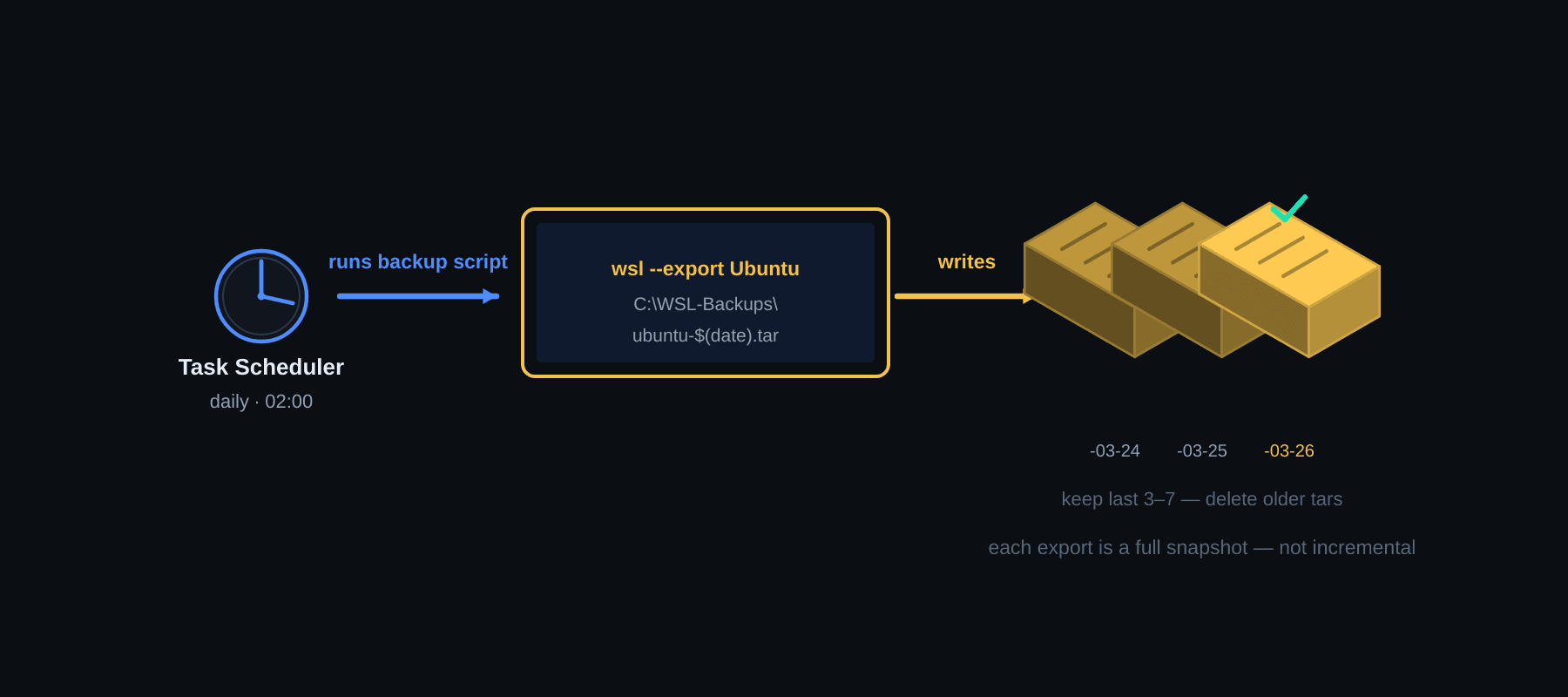
wsl --export creates a tar archive of your entire Linux distribution — every file, installed package, configuration, and user data. The resulting .tar file is a complete snapshot you can import onto any Windows machine running WSL2. It is not incremental — every export is a full copy of the current state.
| Included in export | NOT included — back up separately |
|---|---|
All Linux filesystem files (/home/, /etc/, /usr/) | Files on Windows drives (/mnt/c/, /mnt/d/) |
| All installed packages (apt, pip, npm global) | WSL2 config at C:UsersUsername.wslconfig |
Shell configs (.bashrc, .zshrc, .profile) | Running processes — export is a filesystem snapshot |
SSH keys in ~/.ssh/ | Windows-side environment variables |
| Docker images running inside WSL2 | Task Scheduler tasks and Windows app settings |
How do I check which WSL2 distributions I have before backing up?
Open PowerShell — this step does not need elevation — and list your installed distributions. You need the exact distribution name for the export command and it is case sensitive.
wsl -l -vExpected output:
  NAME      STATE           VERSION
* Ubuntu    Running         2
  Debian    Stopped         2
The asterisk marks the default distribution. Copy the name exactly from this output — Ubuntu and ubuntu are treated as different names and the export will fail with “The system cannot find the file specified” if they do not match.
How do I reduce WSL2 backup size before exporting?
Clean package caches and temporary files before exporting — this takes 30 seconds and can reduce backup size by 200 MB–1 GB on a well-used system without removing anything you need.
wsl -d Ubuntu -- bash -c "sudo apt-get clean && sudo apt-get autoclean && rm -rf ~/.cache/pip"If you use Docker inside WSL2 and do not need old images in the backup:
wsl -d Ubuntu -- bash -c "docker system prune -f"Check the current filesystem size before and after to confirm the cleanup worked:
wsl -d Ubuntu -- du -sh /3.2G /How do I export a WSL2 distribution to a backup file?
Stop the distribution first — exporting a running instance can produce an inconsistent backup if files are being written during the export:
wsl --terminate UbuntuCreate the backup folder and export:
mkdir C:WSL-Backups
wsl --export Ubuntu C:WSL-Backupsubuntu-backup-2026-03-26.tar
Expected output — the command runs silently with no progress indicator. On a standard Ubuntu install with development tools the export takes 1–5 minutes. You will see a new PowerShell prompt when it finishes:
PS C:UsersUsername>Verify the file was created and check its size:
dir C:WSL-Backups Directory of C:WSL-Backups
26/03/2026 09:14 2,341,847,040 ubuntu-backup-2026-03-26.tar
1 File(s) 2,341,847,040 bytesA minimal Ubuntu install with a few packages is 500 MB–1 GB. A full development environment with Docker images is 5–15 GB.
What errors will I hit during wsl –export and how do I fix them?
Access is denied:
Error: Access is denied.The destination folder requires elevated permissions or the path does not exist. Use a path inside your user directory instead:
wsl --export Ubuntu "$env:USERPROFILEDocumentsubuntu-backup.tar"The system cannot find the file specified:
Error: The system cannot find the file specified.The distribution name in your command does not exactly match what wsl -l -v showed — copy it directly from the list output rather than typing it.
Not enough disk space:
Error: There is not enough space on the disk.Check free space before retrying:
Get-PSDrive C | Select-Object Used, FreeEither free space on C: or export to a different drive: wsl --export Ubuntu D:Backupsubuntu-backup.tar
How do I restore a WSL2 backup with wsl –import?
You specify three things to wsl --import: the name for the restored distribution, the folder where WSL2 will store the new virtual disk, and the path to your backup tar file.
How do I replace a broken WSL2 installation from backup?
If replacing a corrupted installation, unregister it first. This permanently deletes all data in that WSL2 instance — only run this if you have the backup and have verified it is not corrupt:
wsl --unregister UbuntuUnregistering...
The operation completed successfully.Create the virtual disk folder and import:
mkdir C:WSLUbuntu
wsl --import Ubuntu C:WSLUbuntu C:WSL-Backupsubuntu-backup-2026-03-26.tar
Import runs silently. Verify it worked:
wsl -l -v NAME STATE VERSION
* Ubuntu Stopped 2Why does WSL2 log me in as root after restoring from backup?
After any wsl --import, WSL2 defaults to logging in as root instead of your regular user — this happens every time, on every machine, and is not a sign something went wrong with the backup:
root@machine:/mnt/c/Users/Username#Check your username first:
# Inside WSL2 as root
ls /home/yourusernameThen set the default user — run this in PowerShell, not inside WSL2:
ubuntu config --default-user yourusernameIf ubuntu config is not found (common with Debian or non-standard distributions), use /etc/wsl.conf inside WSL2 as root instead:
# Inside WSL2 as root
echo -e "[user]ndefault=yourusername" >> /etc/wsl.conf
Restart WSL2 to apply:
# In PowerShell
wsl --shutdown
wsl -d Ubuntu
You should now land in your home directory as your regular user.
How do I automate daily WSL2 backups with Task Scheduler?
Save the script below as C:Scriptswsl-backup.ps1, test it manually, then register it as a scheduled task — it backs up all WSL2 distributions, timestamps each file, logs every run, and deletes backups older than 7 days automatically.
# wsl-backup.ps1
# Save to C:Scriptswsl-backup.ps1

$BackupDir = "C:WSL-Backups"
$KeepDays = 7
$Date = Get-Date -Format "yyyy-MM-dd"
$LogFile = "$BackupDirbackup-log.txt"

if (!(Test-Path $BackupDir)) {
    New-Item -ItemType Directory -Path $BackupDir | Out-Null
}

function Write-Log {
    param($Message)
    $Timestamp = Get-Date -Format "yyyy-MM-dd HH:mm:ss"
    "$Timestamp $Message" | Tee-Object -FilePath $LogFile -Append
}

Write-Log "Starting WSL2 backup"

$Distributions = wsl --list --quiet | Where-Object { $_ -and $_.Trim() -ne "" }

foreach ($Distro in $Distributions) {
    $Distro = $Distro.Trim()
    $BackupFile = "$BackupDir$Distro-$Date.tar"

    Write-Log "Backing up $Distro to $BackupFile"

    wsl --terminate $Distro 2>$null
    Start-Sleep -Seconds 2

    wsl --export $Distro $BackupFile

    if ($LASTEXITCODE -eq 0) {
        $SizeMB = [math]::Round((Get-Item $BackupFile).Length / 1MB, 1)
        Write-Log "SUCCESS: $Distro backed up — $SizeMB MB"
    } else {
        Write-Log "ERROR: $Distro backup failed with exit code $LASTEXITCODE"
    }
}

Write-Log "Cleaning backups older than $KeepDays days"
Get-ChildItem -Path $BackupDir -Filter "*.tar" |
    Where-Object { $_.LastWriteTime -lt (Get-Date).AddDays(-$KeepDays) } |
    ForEach-Object {
        Remove-Item $_.FullName
        Write-Log "Deleted old backup: $($_.Name)"
    }

Write-Log "Backup complete"
Test it manually before scheduling:
powershell -ExecutionPolicy Bypass -File C:Scriptswsl-backup.ps1
Get-Content C:WSL-Backupsbackup-log.txt
Expected log output:
2026-03-26 02:00:01 Starting WSL2 backup
2026-03-26 02:00:03 Backing up Ubuntu to C:WSL-BackupsUbuntu-2026-03-26.tar
2026-03-26 02:03:47 SUCCESS: Ubuntu backed up — 2341.2 MB
2026-03-26 02:03:47 Cleaning backups older than 7 days
2026-03-26 02:03:47 Backup complete
Register the scheduled task — run this in elevated PowerShell:
$Action = New-ScheduledTaskAction `
    -Execute "powershell.exe" `
    -Argument "-ExecutionPolicy Bypass -WindowStyle Hidden -File C:Scriptswsl-backup.ps1"

$Trigger = New-ScheduledTaskTrigger -Daily -At "02:00"

$Settings = New-ScheduledTaskSettingsSet `
    -AllowStartIfOnBatteries `
    -DontStopIfGoingOnBatteries `
    -StartWhenAvailable

Register-ScheduledTask `
    -TaskName "WSL2-Daily-Backup" `
    -Action $Action `
    -Trigger $Trigger `
    -Settings $Settings `
    -RunLevel Highest `
    -Force
Verify the task was created and trigger it immediately to confirm it works under the scheduler — not just in your user session:
Get-ScheduledTask -TaskName "WSL2-Daily-Backup"
Start-ScheduledTask -TaskName "WSL2-Daily-Backup"
Start-Sleep -Seconds 10
Get-Content C:WSL-Backupsbackup-log.txt
TaskPath TaskName State
-------- -------- -----
WSL2-Daily-Backup ReadyHow do I migrate a WSL2 environment to a new Windows machine?
Export on the old machine, copy the tar file to the new machine, import — the tar file is self-contained with no WSL2 version dependency between the two machines, as long as both are running WSL2.
On the old machine — export and copy
# Save your .wslconfig if you have one
copy "$env:USERPROFILE.wslconfig" C:WSL-Migration

# Export the distribution
wsl --terminate Ubuntu
wsl --export Ubuntu C:WSL-Migrationubuntu-migration.tar
Copy C:WSL-Migration to the new machine via USB drive, network share, or cloud storage. A 3 GB tar file copies to OneDrive or Google Drive and downloads on the other end without any issues.
On the new machine — import and configure
# Install WSL2 if not already installed
wsl --install

# Restart after install, then import
mkdir C:WSLUbuntu
wsl --import Ubuntu C:WSLUbuntu C:WSL-Migrationubuntu-migration.tar

# Restore .wslconfig if you had one
copy C:WSL-Migration.wslconfig "$env:USERPROFILE"

# Restart WSL to apply .wslconfig settings
wsl --shutdown

# Launch and verify
wsl -d Ubuntu
Fix the default user after import using the same method as in the restore section above — WSL2 defaults to root on the new machine just as it does after any import.
How do I verify a WSL2 backup is actually restorable without doing a full restore?
A backup you have never tested restoring from is not a real backup — check the tar file contents first, then do a test import under a different name if you want full confidence.
Check the tar file is not empty or corrupt — run this inside WSL2, not PowerShell:
tar -tzf /mnt/c/WSL-Backups/ubuntu-backup-2026-03-26.tar | head -30./
./bin
./bin/bash
./bin/cat
./etc/
./etc/hostname
./home/
./home/yourusername/
./home/yourusername/.bashrcIf the command hangs or produces an error, the tar file is corrupt — recreate the backup. If it shows your home directory and system files, the archive is intact.
For a full restore test without touching your live installation, import it under a different name alongside your existing distribution:
mkdir C:WSLUbuntu-Test
wsl --import Ubuntu-Test C:WSLUbuntu-Test C:WSL-Backupsubuntu-backup-2026-03-26.tar
wsl -d Ubuntu-Test -- ls /home/
wsl --unregister Ubuntu-Test
If ls /home/ shows your username, the backup is good. Unregister the test instance when done — it served its purpose and takes up the same disk space as the original installation.
For Linux system-level configuration inside your restored WSL2 instance, including swap and memory settings, see the Linux swap management guide.
Frequently asked questions
Does wsl –export include files on my Windows drives?
No. The tar contains only the Linux filesystem — /home/, /etc/, installed packages, SSH keys. Anything under /mnt/c/, /mnt/d/ or other Windows mounts is not part of the distro’s VHDX and is not exported. Back up Windows-side files with your normal Windows backup tooling.
Can I run wsl –export while the distribution is running?
Yes, it works while running — but the export is a point-in-time filesystem snapshot, and files being written at that moment can end up inconsistent. For a clean backup of databases or active project directories, run wsl --shutdown first, then export. For routine scheduled backups of a mostly-idle distro, exporting while running is fine.
Where should I store WSL2 backup tar files?
Not on the same drive as the VHDX if the backup is meant to survive a disk failure or Windows reinstall. A second drive, a NAS share, or cloud-synced folder all work. The pattern C:WSL-Backups used in this guide is fine for quick rollbacks — for disaster recovery, copy the tar off the machine too.
Why does WSL2 log in as root after wsl –import?
Because the tar carries the filesystem but not the registry entry that stores the default user — that setting lives in Windows, per-distribution. After every import, set it back with ubuntu config --default-user yourname (or the matching launcher for your distro) in PowerShell, or edit /etc/wsl.conf inside the distro and add a [user] section with default=yourname.
Does wsl –export include installed apt packages and Docker images?
Yes — the export is the whole filesystem, so every package installed with apt, pip, npm or any other manager comes along, and so do Docker images if Docker runs inside WSL2. That is also why export size grows with usage: a distro with a large Docker cache or node_modules exports every byte of it. Clean up before export if size matters.
What is the difference between wsl –export and a Windows system image?
wsl --export captures only the Linux distribution — it is small (hundreds of MB to a few GB), fast, and restores a single distro via wsl --import on any WSL2 machine. A Windows system image captures the entire OS drive including the VHDX file — much larger, restores everything or nothing, and cannot be imported as a distro. For protecting a WSL environment, export is the right granularity.