Quick answer: The fastest WSL file transfer method depends on what you are moving — File Explorer works for one-off files, cp for single copies, rsync -avP for directories (resumes interrupted transfers, skips unchanged files), and tar -czf for large archives going to Windows. Cross-filesystem transfers between /mnt/c/ and /home/ run at 200–500 MB/s on NVMe; transfers within the WSL native filesystem run at 1,000–2,000 MB/s. The most common post-copy problem is wrong permissions (files arrive as 777) or broken scripts due to Windows CRLF line endings. Tested on WSL2 Ubuntu 22.04 and 24.04, Windows 11, March 2026.
Moving files between Windows and WSL2 is one of those things that looks simple until you hit a slow transfer, a permission error, or a case where the file you just copied has the wrong line endings and breaks your script. This guide covers every practical WSL file transfer method — File Explorer, cp, rsync, tar, and automated sync scripts — with the exact commands, expected output, and the specific errors you will run into. Tested on WSL2 with Ubuntu 22.04 and 24.04 on Windows 11. Last updated March 2026.
If you haven’t set up WSL2 yet, start with the WSL2 installation guide first. If you are here because you need to back up your entire WSL instance, the WSL2 backup guide covers full instance export with wsl --export.
Which WSL file transfer method should I use?
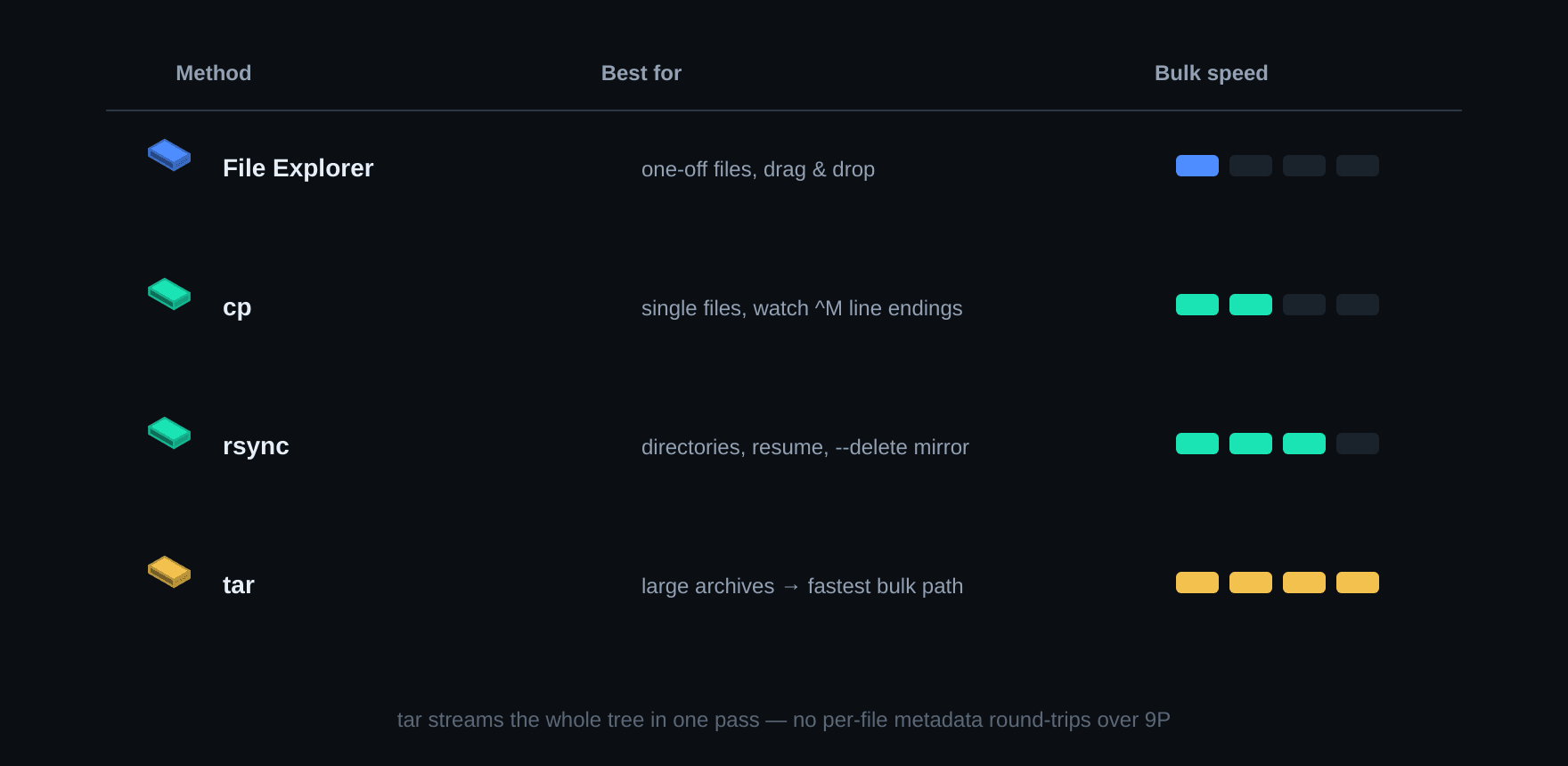
Use this table to pick the right method before you start — the wrong choice for the job costs time you don’t need to spend.
| Method | Best for | Resumes interrupted | Skips unchanged files | Speed (cross-filesystem) | Line ending fix needed |
|---|---|---|---|---|---|
| File Explorer | 1–5 files, one-off manual copy | No | No | Same as cp | No |
cp | Single file or small directory copy | No | No | 200–500 MB/s (NVMe) | Yes, for .sh scripts |
rsync -avP | Directories, recurring syncs, large file counts | Yes | Yes | 200–500 MB/s (NVMe) | No (binary-safe) |
tar -czf | Large directories going to Windows as archive | No | No | Faster than rsync for 50k+ small files | No |
Which filesystem is your file on, and why does it determine transfer speed?
Your file is on one of two filesystems — WSL native (/home/username/) or a Windows-mounted drive (/mnt/c/) — and cross-filesystem transfers between them are 2–5× slower than staying within the same filesystem, because every byte crosses the VM boundary between the Linux kernel and Windows NTFS.
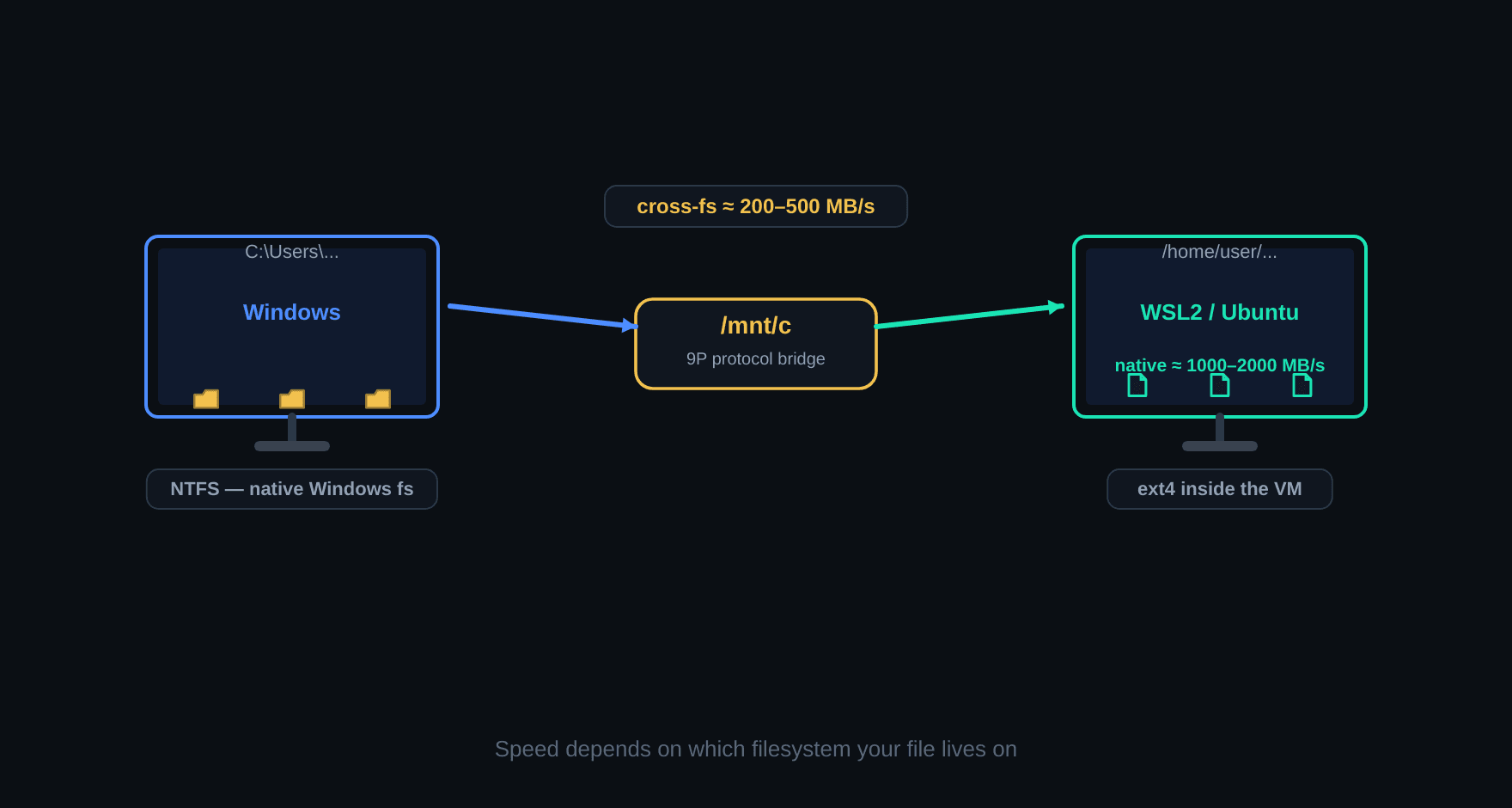
- WSL native filesystem — your Linux home directory at
/home/username/. Stored in a virtual disk image (ext4.vhdx) on Windows. Fast for Linux operations, running at 1,000–2,000 MB/s sequential on NVMe. Accessible from Windows at\\wsl$\Ubuntu\in File Explorer. - Windows mounted drives — your Windows C: drive is accessible inside WSL at
/mnt/c/. D: drive at/mnt/d/, and so on. Cross-filesystem writes to/mnt/c/from WSL run at 200–500 MB/s on NVMe, and significantly slower if Windows Defender is scanning files in real time.
For a single 1 GB file the speed difference is noticeable but not critical. For 50,000 small source files the difference is significant enough to justify restructuring your workflow. The practical rule: keep your active development files in the WSL native filesystem (/home/), and copy to /mnt/c/ only when you need Windows to read them.
Check which filesystem you are working with:
# Check where you are
pwd

# Check filesystem type of current location
df -T .

# Translate a Windows path to WSL path
wslpath 'C:\Users\Username\Documents'
# Output: /mnt/c/Users/Username/Documents

# Translate a WSL path to Windows path
wslpath -w '/home/username/projects'
# Output: \\wsl$\Ubuntu\home\username\projects
How do I move files between Windows and WSL2 using File Explorer?
Navigate to \\wsl$\Ubuntu in the File Explorer address bar to access your WSL files directly from Windows — no commands needed, and you can drag and drop exactly like any Windows folder.
How do I access WSL files from the Windows side?
Type this directly in the File Explorer address bar:
\\wsl$\UbuntuReplace Ubuntu with your actual distribution name if different. To see all installed distributions:
\\wsl$From here you can drag and drop files in and out exactly like any Windows folder. Pin it to Quick Access to avoid typing the path every time.
Error you may hit: if WSL is not currently running, \\wsl$ shows as empty or throws a network error. Fix: open your WSL terminal first to start the WSL session, then navigate to \\wsl$ again.
How do I open File Explorer from inside the WSL terminal?
# Open File Explorer at current WSL directory
explorer.exe .
This opens a File Explorer window pointing at your current Linux directory. You can then drag files in from Windows, or copy files out to Windows.
Error you may hit:
explorer.exe: command not foundThis means /mnt/c/Windows/System32/ is not in your WSL PATH. Add it:
echo 'export PATH=$PATH:/mnt/c/Windows/System32' >> ~/.bashrc
source ~/.bashrc
File Explorer is fine for occasional manual transfers. For anything recurring or involving more than a handful of files, use the command line methods below.
When should I use cp for WSL file transfers, and what errors will I hit?
Use cp for one-time copies of specific files or small directories when you do not need to resume an interrupted transfer or skip unchanged files — for those cases, rsync is the better choice.
# Copy a single file from Windows to WSL home
cp /mnt/c/Users/Username/Documents/config.txt ~/

# Copy a directory recursively with verbose output
cp -rv /mnt/c/source/ ~/destination/

# Copy preserving timestamps and permissions
cp -rp /mnt/c/source/ ~/destination/
Expected output from cp -rv:
'/mnt/c/source/file1.txt' -> '/home/username/destination/file1.txt'
'/mnt/c/source/file2.txt' -> '/home/username/destination/file2.txt'
Why do shell scripts copied from Windows fail with “bad interpreter: ^M”?
Shell scripts copied from Windows arrive with CRLF line endings (\r\n) instead of Linux LF endings (\n). The ^M is the carriage return character, and bash cannot parse it as part of a shebang line:
bash: ./script.sh: /bin/bash^M: bad interpreter: No such file or directoryFix it with dos2unix:
# Install dos2unix if not present
sudo apt install dos2unix

# Fix a single file
dos2unix script.sh

# Fix all .sh files in a directory
find ~/scripts -name "*.sh" -exec dos2unix {} \;
How do I use rsync to sync directories between Windows and WSL2?
Run rsync -avP /mnt/c/source/ ~/destination/ — the -P flag shows progress and resumes interrupted transfers, and rsync skips files that haven’t changed, making it the right choice for any recurring sync or directory larger than a few dozen files.
Install it first if needed:
sudo apt install rsyncHow do I run a basic rsync transfer from Windows to WSL?
# Sync directory from Windows to WSL with progress
rsync -avP /mnt/c/source/ ~/destination/
Expected output:
sending incremental file list
./
file1.txt
          1,234 100%    0.00kB/s    0:00:00 (xfr#1, to-chk=4/6)
file2.txt
          5,678 100%    5.54kB/s    0:00:01 (xfr#2, to-chk=3/6)

sent 7,123 bytes  received 54 bytes  14,354.00 bytes/sec
total size is 6,912  speedup is 0.97
Why does the trailing slash on the rsync source path matter?
A trailing slash on the source copies the contents of the directory into the destination. No trailing slash copies the directory itself into the destination — the result is a different folder structure and this catches people every time:
# WITH trailing slash on source — copies the CONTENTS of source into destination
rsync -av /mnt/c/source/ ~/destination/
# Result: ~/destination/file1.txt, ~/destination/file2.txt

# WITHOUT trailing slash on source — copies the directory ITSELF into destination
rsync -av /mnt/c/source ~/destination/
# Result: ~/destination/source/file1.txt, ~/destination/source/file2.txt
How do I exclude node_modules and temp files from rsync?
# Exclude node_modules and temp files
rsync -avP \
  --exclude='node_modules/' \
  --exclude='*.tmp' \
  --exclude='.git/' \
  /mnt/c/source/ ~/destination/
How do I preview what rsync will do before running it?
Add -n for a dry run — rsync prints exactly which files it would transfer without touching anything:
# Dry run — shows what would happen without actually doing it
rsync -avn /mnt/c/source/ ~/destination/
Only remove -n once the output shows the files you expect. This is especially important before using --delete.
How do I mirror-sync so files deleted from the source are also deleted from the destination?
Add --delete to make the destination an exact mirror of the source. Always run the dry run first — --delete permanently removes files from the destination that no longer exist in the source:
# Dry run first
rsync -avn --delete /mnt/c/source/ ~/destination/

# Then run for real if the output looks correct
rsync -avP --delete /mnt/c/source/ ~/destination/
When is tar faster than rsync for WSL file transfers?
Use tar instead of rsync when transferring a directory with 50,000+ small files to Windows — tar bundles everything into a single compressed file first, making one cross-filesystem write instead of thousands of individual file-by-file writes across the VM boundary.
# Create compressed archive on Windows drive
tar -czf /mnt/c/backups/projects.tar.gz ~/projects/
Expected output — tar is silent by default. Add -v to see file names as they are archived:
tar -czvf /mnt/c/backups/projects.tar.gz ~/projects/projects/
projects/app.py
projects/config.json
projects/requirements.txt# Extract on the other side
tar -xzf /mnt/c/backups/projects.tar.gz -C ~/restored/Verify the archive before relying on it:
# List contents without extracting
tar -tzf /mnt/c/backups/projects.tar.gz | head -20
No output or an error on the -t check means the archive is corrupt — the most common cause is running out of disk space mid-archive without receiving an error message. Check available space with df -h /mnt/c/ before creating large archives.
How do I automate recurring WSL to Windows directory sync?
Save the script below as ~/scripts/sync-to-windows.sh, edit the SOURCE and DEST paths, then schedule it with cron to run without manual intervention — it logs every run and exits with a non-zero code on failure so you can detect broken syncs.
#!/bin/bash
# Save as ~/scripts/sync-to-windows.sh
# Run: bash ~/scripts/sync-to-windows.sh

SOURCE="/home/$USER/projects"
DEST="/mnt/c/wsl-backup"
LOG="/home/$USER/logs/sync.log"
TIMESTAMP=$(date '+%Y-%m-%d %H:%M:%S')

mkdir -p "$DEST" "$(dirname "$LOG")"

log() {
    echo "[$TIMESTAMP] $1" | tee -a "$LOG"
}

# Check source exists
if [ ! -d "$SOURCE" ]; then
    log "ERROR: Source directory $SOURCE not found"
    exit 1
fi

# Check Windows drive is mounted
if [ ! -d "/mnt/c" ]; then
    log "ERROR: Windows drive not mounted at /mnt/c"
    exit 1
fi

log "Starting sync: $SOURCE -> $DEST"

rsync -avP \
    --exclude='node_modules/' \
    --exclude='.git/' \
    --exclude='*.tmp' \
    --exclude='__pycache__/' \
    "$SOURCE/" "$DEST/" 2>> "$LOG"

if [ $? -eq 0 ]; then
    log "Sync completed successfully"
else
    log "ERROR: Sync failed — check log for details"
    exit 1
fi
Make it executable and test it:
chmod +x ~/scripts/sync-to-windows.sh

# Test run
bash ~/scripts/sync-to-windows.sh

# Check the log
cat ~/logs/sync.log
To schedule it with cron — open the crontab editor:
crontab -eAdd this line to run it every day at 2 AM:
0 2 * * * /bin/bash /home/USERNAME/scripts/sync-to-windows.shReplace USERNAME with your actual username. Do not use ~ in cron paths — cron does not always expand it correctly and the job will silently fail.
Why do files copied from Windows to WSL have wrong permissions, and how do I fix it?
Files copied from /mnt/c/ arrive with 777 permissions because NTFS does not store Linux permission bits — WSL assigns the most permissive default. Git treats 777 as a mode change on every copied file and marks them all as modified, even if content is identical.
# Check what permissions copied files have
ls -la ~/destination/

# Fix a directory of copied files to sensible defaults
find ~/destination -type f -exec chmod 644 {} \;
find ~/destination -type d -exec chmod 755 {} \;

# Fix ownership if files are owned by root after copy
sudo chown -R $USER:$USER ~/destination/
For shell scripts specifically — they need execute permission or they will fail with Permission denied even after the CRLF fix:
find ~/scripts -name "*.sh" -exec chmod 755 {} \;How do I prevent the 777 permissions problem permanently?
Add a [automount] section to /etc/wsl.conf with the metadata option — this tells WSL to store Linux permission bits on Windows-mounted drives so files keep whatever permissions you set instead of defaulting to 777 on every mount:
sudo nano /etc/wsl.confAdd these lines:
[automount]
options = "metadata"
Save and restart WSL:
# In PowerShell on Windows
wsl --shutdown
# Then reopen your WSL terminal
For more on WSL configuration options see the Microsoft WSL configuration documentation.
Why are my WSL file transfers slow, and how do I benchmark them?
The most common cause of unexpectedly slow WSL file transfers is Windows Defender scanning every file as it crosses the filesystem boundary — this can reduce cross-filesystem throughput from 200–500 MB/s down to 20–50 MB/s on the same hardware. Benchmark first to confirm:
# Benchmark cross-filesystem write speed (WSL to Windows)
dd if=/dev/zero of=/mnt/c/testfile bs=1M count=512 conv=fdatasync
rm /mnt/c/testfile

# Benchmark WSL native write speed
dd if=/dev/zero of=~/testfile bs=1M count=512 conv=fdatasync
rm ~/testfile
Expected results on NVMe: WSL native writes at 1,000–2,000 MB/s, cross-filesystem to /mnt/c/ at 200–500 MB/s. If your cross-filesystem result is below 50 MB/s, Defender real-time scanning is the likely cause. Fix: open Windows Security → Virus & threat protection → Manage settings → Add or remove exclusions, and add %LOCALAPPDATA%\Packages\CanonicalGroup* (the folder containing the WSL virtual disk file). This excludes the WSL disk from real-time scanning without disabling Defender on the rest of the system.
For system-level Linux operations like swap and memory management alongside your WSL setup, see the Linux swap management guide — WSL2 has its own memory limits separate from host Linux swap, but the underlying concepts are the same.
Frequently asked questions
Is it safe to edit WSL files from Windows applications?
Yes — through the \\wsl$ share or \\wsl.localhost, which go through the 9P protocol and preserve Linux metadata correctly. What you must never do is open the VHDX disk file directly (%LOCALAPPDATA%\Packages\CanonicalGroup*\LocalState\ext4.vhdx) or poke inside the distro package folders while WSL is running — that path is the raw virtual disk, not a filesystem view, and writing to it corrupts the distro.
Where is the WSL2 filesystem stored on the Windows side?
Inside a virtual disk: %LOCALAPPDATA%\Packages\<distro-package>\LocalState\ext4.vhdx. You cannot browse it as folders in Explorer — that is what the \\wsl$ share is for. The VHDX grows as you add files but does not shrink when you delete them; to reclaim space, run wsl --shutdown, then compact the file with diskpart (select vdisk file=..., attach vdisk readonly, compact vdisk, detach vdisk) or Optimize-VHD in PowerShell with the Hyper-V module.
How do I convert a Windows path to a WSL path (and back)?
wslpath -u 'C:\Users\me\file.txt'   # → /mnt/c/Users/me/file.txt
wslpath -w ~/project/main.py          # → \\wsl.localhost\Ubuntu\home\...
This is the correct tool inside scripts — never hand-concatenate /mnt/c/ onto a Windows path, because spaces, Unicode and backslashes will break the result.
Why is /mnt/c so much slower than the WSL home directory?
WSL2 runs a real Linux kernel in a VM. Files under /home/ live on ext4 inside that VM (measured 1,000–2,000 MB/s on NVMe), while /mnt/c/ reaches Windows NTFS through the 9P file-sharing protocol — every file open, stat and read crosses the VM boundary (measured 200–500 MB/s for bulk copies, and far worse for thousands of small files). Keep project files on the WSL side and only cross the boundary when you actually need to move something.
Is WSL1 faster for file transfers than WSL2?
For /mnt/c/ access specifically, yes — WSL1 has no VM boundary, so Windows-drive access runs at near-native speed. But WSL1’s native filesystem is slower for Linux workloads (no real ext4, slower syscall translation), it lacks a real kernel, and many modern tools require WSL2. For most people the right answer is WSL2 plus keeping working files inside the WSL filesystem — not going back to WSL1.
Do symlinks and Linux permissions survive a copy to Windows?
No. Copying to /mnt/c/ (or through File Explorer) flattens symlinks into regular files and drops Linux permission bits — NTFS has no equivalent storage for them. Copying the other direction stamps files with default permissions and often sets the executable bit on everything. If you need to move a tree while preserving structure, archive it with tar first and extract on the target side instead of copying the files raw.